Mapping a Network Drive
Version 6.1 by Eric Kemppainen on 2022/12/22 11:01
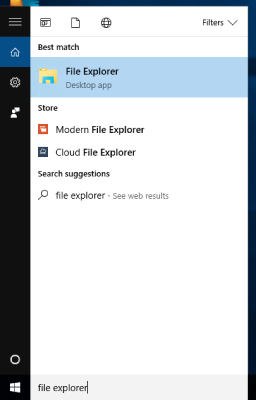
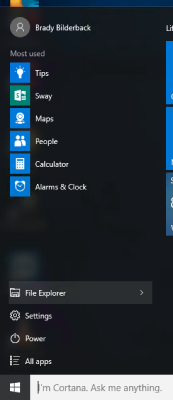
Open up the File Explorer by either searching or using the button
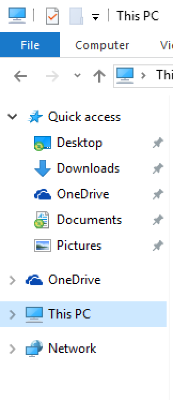
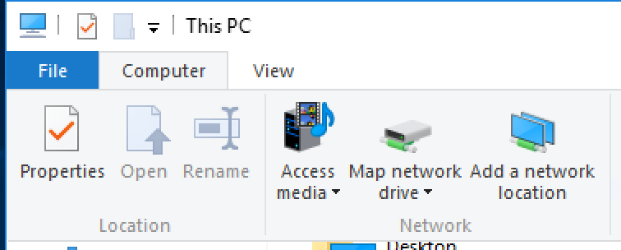
Click on This PC in the left navigation display
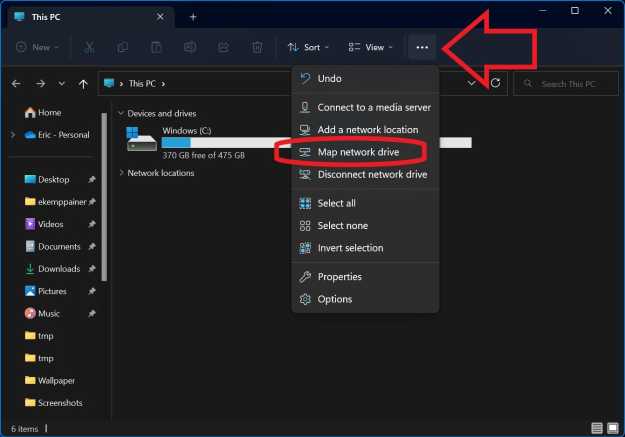
Click on Computer from the menu bar, and click Map network drive
Choose a drive letter from the drop down menu and enter in the path to the network share
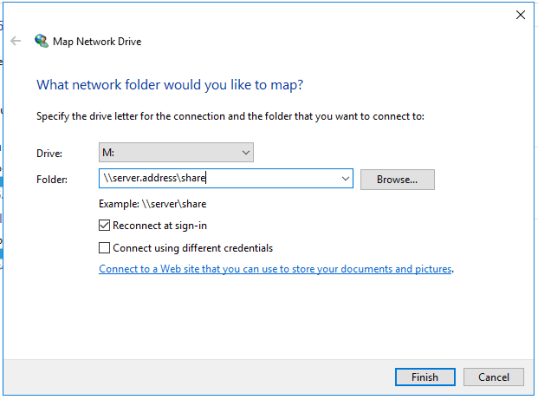
Click Finish
You may be prompted for a login, use your login for the network share you are connecting to
You should now have the network share mapped to a drive letter in Windows